The overseas webinar in the middle of the night
Join before bed, press record and let your computer listen for you. In the morning, play it back and read the transcript.

Free audio recorder for Mac & Windows · Open source
Even with headphones in, you get every word from the other side. Focus on the meeting, and replay the bit you missed in the lecture later.
 macOS 14.4 or later · FreeOr download the installer (DMG) ↓Windows versionComing soon
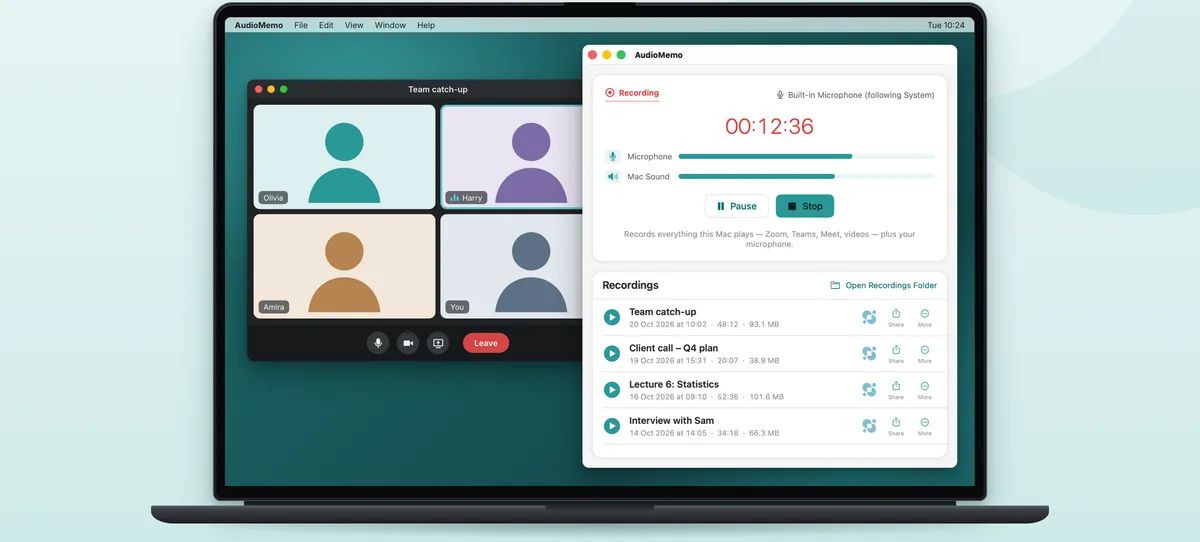
It records the sound inside your computer, so with AirPods or wired headphones on, every word from the other side still gets recorded.
An hour-long meeting makes a file far smaller than a video. Easy to keep, send and sort.
No notetaker bot showing up as a "participant". Everyone talks as usual; you just press record.
Free, no account, no AI subscription. Even recordings of confidential meetings stay in your hands only.
Join before bed, press record and let your computer listen for you. In the morning, play it back and read the transcript.
The whole meeting's audio is on your own computer. Replay whichever bit you want afterwards.
No replay, a broken replay, or one that expired? You have your own copy.
Didn't catch it the first time? The recording and transcript let you work through it slowly.
Open the transcript after the meeting and see exactly who said what.
No bot in the room, so clients talk the way they normally do, and you still have every word.
Every word the interviewee said is on record. No more quoting from memory.
Gone when the stream ends? Press record when it starts and keep it all.
After the lecture, catch up on the parts missed, line by line, in the transcript.
Record the audio, turn it into notes and send them over, so they can catch up on the meeting they missed.
With the doctor's agreement, record it, so the family can read everything the doctor said afterwards.
When you want a transcript, send it to Osmi in one click. You get a transcript and key notes, downloaded to your own computer. Every lecture and meeting you've sat through becomes your own knowledge base. No subscription: pay only for what you use.
All of AudioMemo's code is public on GitHub. Where recordings are saved and whether anything gets uploaded: you don't have to take our word for it. Anyone can open it up and check.
Every line of code is public. A friend who codes can check it for you.
Apache-2.0 licensed. Free for anyone, personal or business, to use and modify.
Recordings are ordinary audio files that play in any player. Even if we stopped one day, the code would still be there.
Install AudioMemo and press record. Sound from Teams, Zoom, Google Meet, YouTube or an online lecture, plus your microphone, is saved together as one audio file. The Mac version is out first, and the Windows version is coming soon.
Yes. AudioMemo was built for both Mac and Windows from day one. The Mac version comes first, and the Windows version is coming soon.
Yes. AudioMemo records the sound your computer plays, so it doesn't use the meeting app's record button and no bot joins the meeting. Just let everyone know before you start recording.
Yes. It records the sound inside your computer, so wired headphones, Bluetooth headphones and AirPods all work the same.
When all you need is the audio, video files are big and hard to organise. AudioMemo records only the sound, so files are small, easy to keep and send, and ready to hand to Osmi for a transcript.
No, and no account needed. Recordings are saved only on your computer. Only when you press "Transcribe with Osmi" is that one file uploaded.
AudioMemo is free, open source and has no time limit. For a transcript, hand it to Osmi: no subscription, just buy credit and only use what you need.
macOS 14.4 or later · FreeOr download the installer (DMG) ↓Windows versionComing soonSmall print