How-to guides

Too many meeting notes?
Keep them all in one Drive

Meeting notes live on everyone's own computer, so finding one means asking around. Have Osmi save every meeting as a Google Doc in the same Drive, and your team just opens it. Three steps.

Step 1

In Osmi, tap "Export" and connect Google Drive

When your notes are ready, tap "Export" in the top-right corner. On the web, click "Connect Google Drive" under "Send to", pick your Google account and allow access, then choose a folder for your meeting notes (skip it and they go to My Drive). In the mobile app, tap "Save to Google Docs" and pick your account the first time.
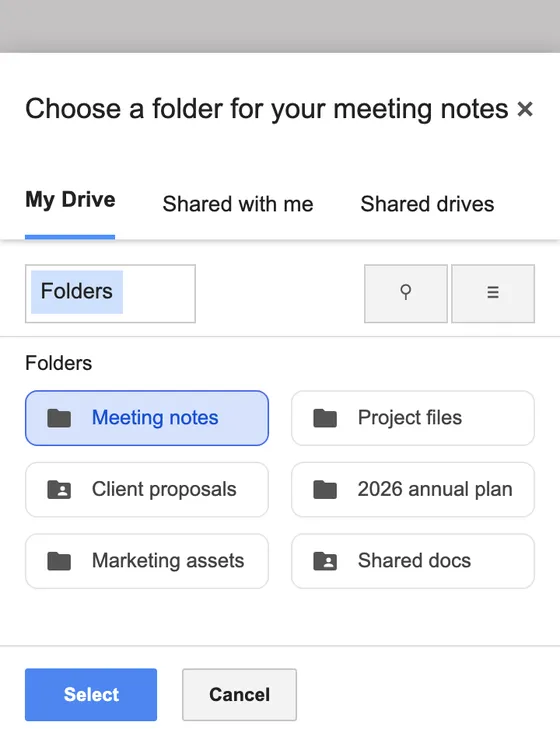
In Osmi, tap "Export" and connect Google Drive

Step 2

Every meeting goes to the same folder

Once connected, the button reads "Send to Google Drive · folder name". Every meeting you send lands in that one folder.
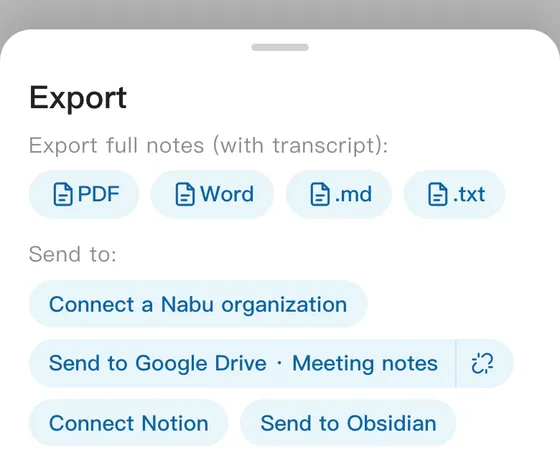
Every meeting goes to the same folder

Step 3

Send it, then open and share

Tap "Send to Google Drive" or "Save to Google Docs", and tap "Open" when it's saved. It's a regular Google Doc: share it with colleagues using Google's Share button, and everyone can read and comment together.

Tips

  • Share your meeting-notes folder with the whole team, and everyone sees every meeting saved there.
  • On the web, to switch accounts or folders, click the right half of the button to disconnect, then connect again.
  • Transcripts can be saved as Google Docs too, right next to the notes.

Small print

  1. In the phone app, one session can run up to 4 hours; on a computer, the web app (meeting.bookai.com) takes up to 12 hours. Speaker identification is less reliable for recordings over 4 hours, so check the speaker names when it's done.
  2. We delete your recording once the whole meeting has been processed. Transcripts and minutes are deleted 48 hours after your last action on them, or 24 hours after you export them. We never use your content to train AI.
  3. New accounts get 60 free minutes, valid for 30 days. Credit you buy doesn't expire.
  4. Credit is only used once your transcript is delivered; if processing fails, it's returned in full.
  5. Transcripts are produced by AI and may contain mistakes. For anything important, check against the original recording.
  6. You choose the language of the recording and of the minutes, from the languages we support.
  7. Osmi doesn't record: you upload a recording you already have. DS2 files aren't supported yet; convert them to a common audio format such as MP3 first.
  8. While it's being processed, your recording is stored temporarily on Google Cloud and deleted when processing is complete.
  9. Notes stay in your account. You can export them or delete them, and you decide.
  10. Scene photos are stock images from Unsplash/Pexels, not Osmi users. Names and companies in the sample meeting are made up.