Call on your Mac?
Record it in one click
Taking WhatsApp or FaceTime calls on your Mac, and the important details are gone the moment you hang up? AudioMemo stays in the menu bar at the top of your screen. When a call comes in, no window to hunt for: one click and you're recording.
Step 1
Answer the call on your Mac
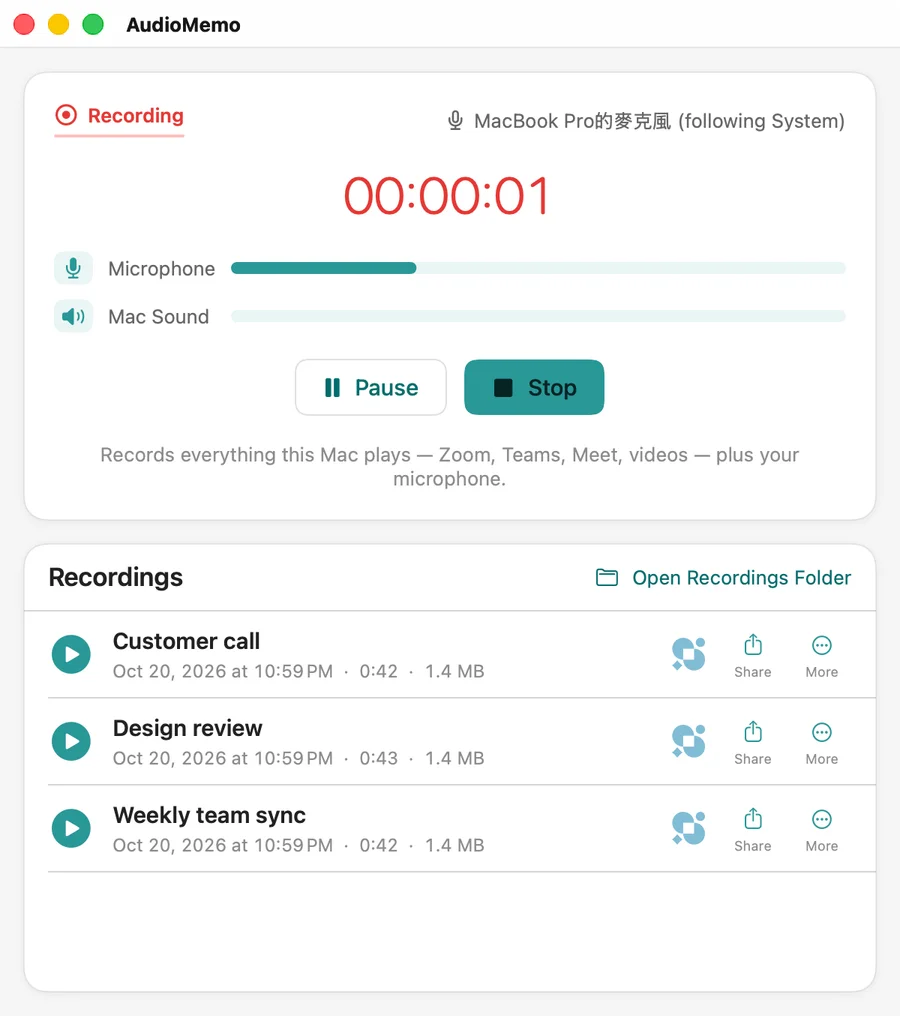
Pick up the WhatsApp call as usual. Headphones are fine, because AudioMemo records the sound inside your computer.
Step 2
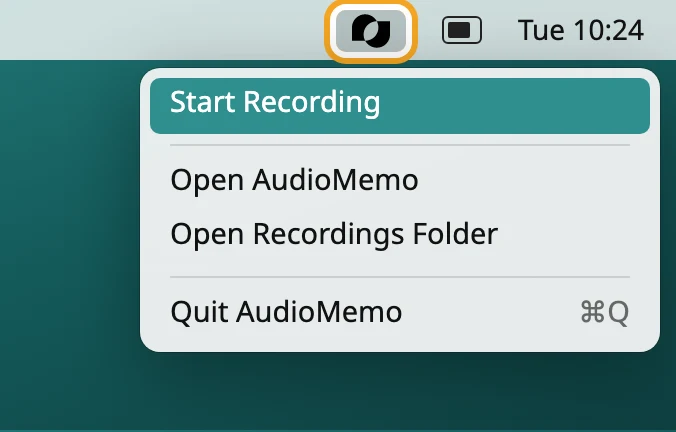
Go to the menu bar: AudioMemo → "Start Recording"
Click the AudioMemo icon in the menu bar at the top of your screen and choose "Start Recording". When the icon turns into a red dot with a timer, both your voice and theirs are being recorded.
Step 3
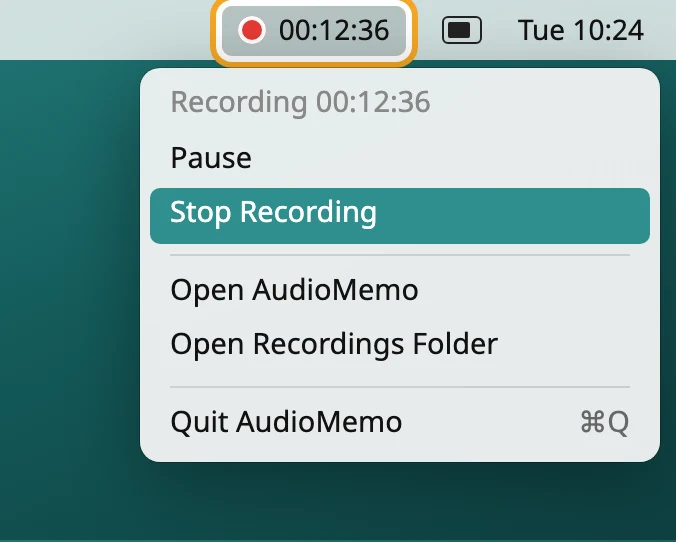
After you hang up, click "Stop Recording"
Click the menu bar icon again and choose "Stop Recording". The recording is saved on your computer.
Step 4
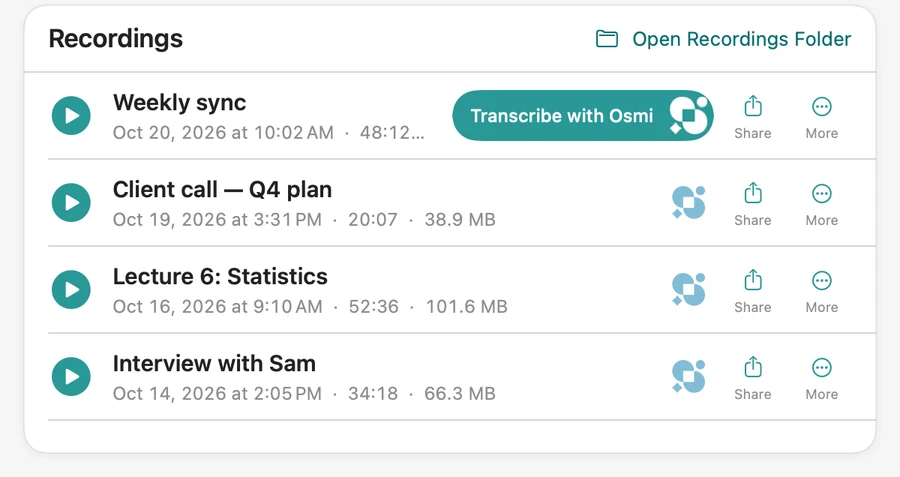
Need notes from the call? Hand it to Osmi
Click "Transcribe with Osmi" on that recording's row. Tell Osmi who you were talking to, and quotes, addresses and agreed times become key points. Click "Export" in the top-right corner to save as PDF or Word, easy to forward to a colleague.
Tips
- Before you record, just let the other person know.
- Quotes, addresses, times you agreed on: no need to scribble whilst you talk. Play it back after you hang up.
- Recordings are saved only on your computer. No account, no cloud.
Install from the Mac App Store, or download the DMG, open it and drag AudioMemo into your Applications folder. The first time you record, your Mac asks twice — to use the microphone and to record this computer's audio. Click Allow both times.