Turn online lectures
into notes in 3 steps
Online lectures come one after another, and the key points always go by faster than you can write. Record every lecture with AudioMemo, let Osmi turn it into a transcript and key notes, and download them into one folder. By the end of term, you have a complete knowledge base of your own.
Step 1
Before the lecture, click Start Recording
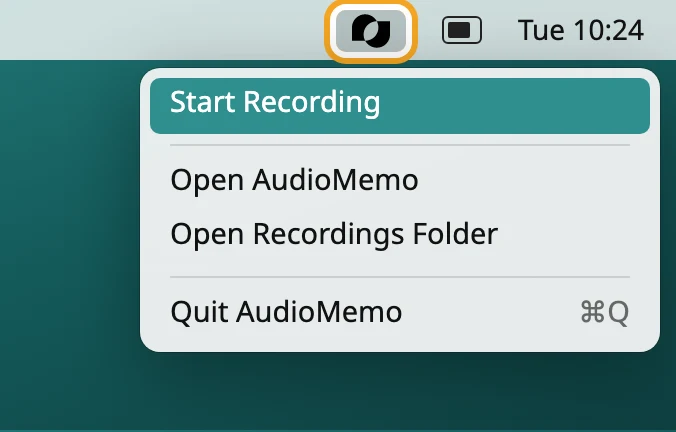
Open AudioMemo and press "Start Recording", or click the AudioMemo icon in the menu bar at the top of your screen and choose "Start Recording". The lecturer's voice and your questions all go in, even with headphones on.
Step 2
After the lecture, click "Transcribe with Osmi"
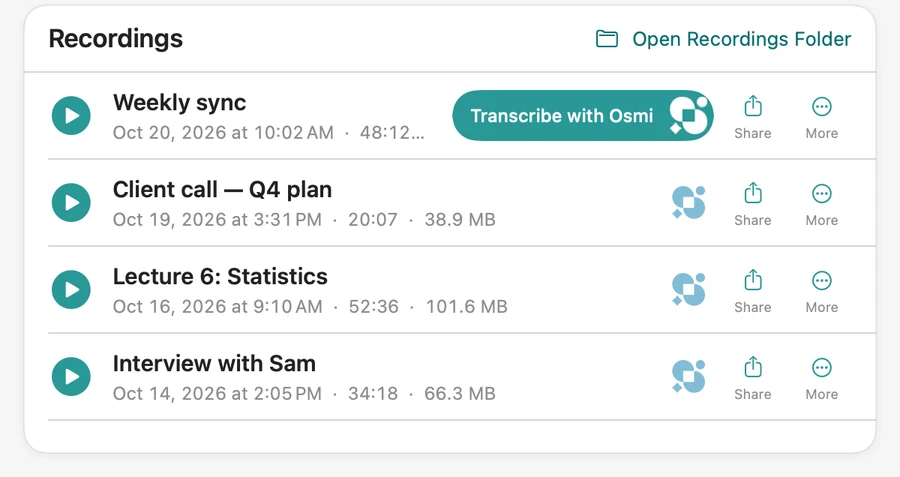
Click "Stop Recording", then click "Transcribe with Osmi" on that recording's row. The first time, you'll sign in to Osmi with Google or Apple; after that, one click uploads it and Osmi opens in your browser.
Step 3
Tell Osmi who's speaking, then export to your module folder
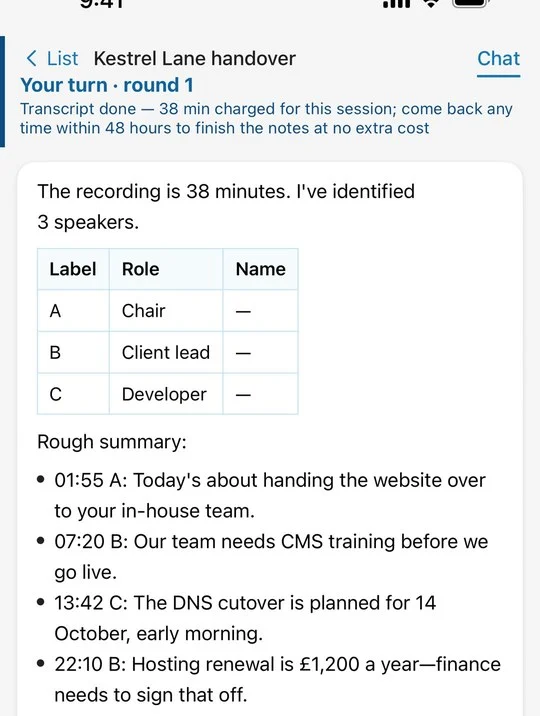
Osmi writes the transcript first, then asks who's speaking: change "A" to your lecturer's name. Subject terms spelt wrong? Fix them all at once with "Fix terms"; if everything's right, click "All correct". Want revision notes for the exam? Just type it in as one of the points to highlight. When it's done, click "Export" in the top-right corner, save as PDF, Word or .md, and drop it in the same module folder. Your computer is your knowledge base.
Tips
- Revision time: search your folder for a keyword and jump straight to what the lecturer said.
- Audio only means small files, so a whole term of lectures barely takes up space on your laptop.
- Missed a sentence? Open the recording and jump right to that moment to hear it again.
Install from the Mac App Store, or download the DMG, open it and drag AudioMemo into your Applications folder. The first time you record, your Mac asks twice — to use the microphone and to record this computer's audio. Click Allow both times.