Your first lecture notes
start with a lecture or a talk
In a lecture or a talk, scribbling notes while you listen means missing something. For your first go, pick a recent lecture or talk. Hand over the recording, answer a few questions, and key points, a timeline and the full transcript all come back together, so you can just listen.
Step 1
Record the whole lecture on your phone
Make sure the speaker is fine with being recorded, sit near the front, open the built-in recording app and hit record: Voice Memos on iPhone, the voice recorder app on Android. A video recording of an online lecture works too; Osmi only uses the audio.
Step 2
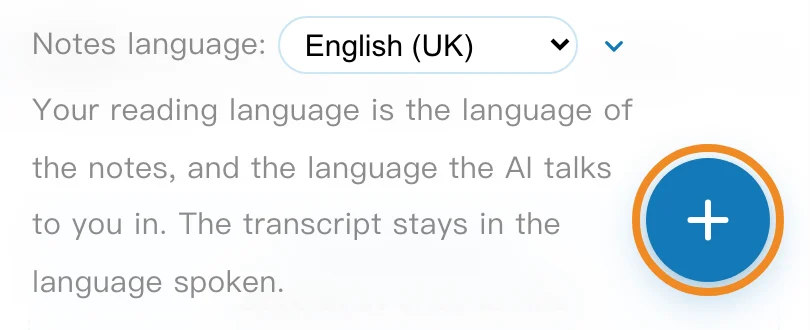
Open Osmi, tap "+" to pick the recording, then "Start"
First choose the "Reading language" at the bottom; your notes are written in that language. Tap "+" in the bottom-right corner and pick the file; if the lecture was recorded in several parts, select them all. Check the length and tap "Start". Once it's uploaded, go and do something else; you'll get a notification when it's ready.
Step 3
Tell Osmi who's speaking
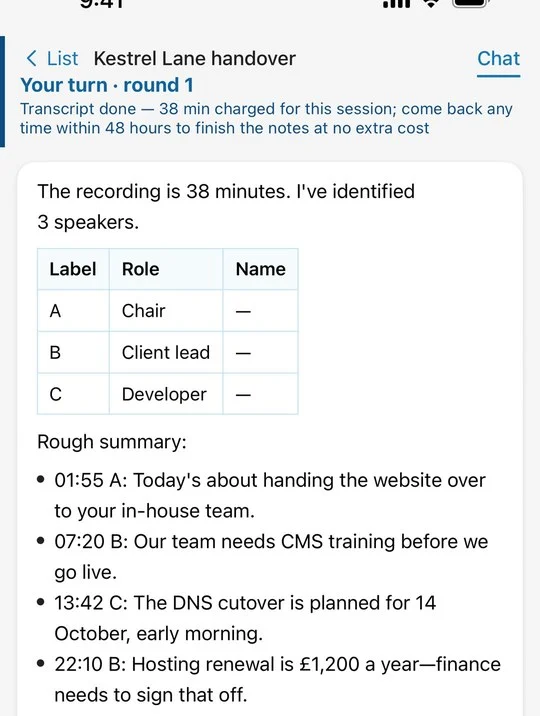
Osmi writes the transcript first, then lists the speakers it heard. Swap A for the lecturer's or speaker's name; people asking questions can stay as they are. Terms spelt wrong? Fix them all in one go with "Fix terms"; if everything's right, tap "All correct".
Step 4
Export it as your notes
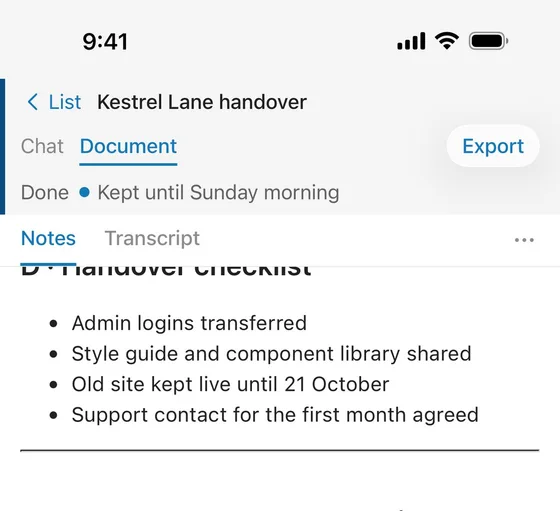
You get key points, a timeline and a quick read, and the timeline lets you jump back to any part. Tap "Export" in the top-right corner, save it as a PDF or Word file, or send it straight to Google Docs, then add it to your course notes.
Tips
- New accounts get 60 free minutes, valid for 30 days, which is plenty for a full lecture.
- The closer your phone is to the speaker, the clearer the transcript.
- Before you record, check that the speaker is fine with it.