Too many meeting notes?
Keep them together in Notion
Meeting notes end up scattered across inboxes and folders, and you can't find them when you need them. If you already organize your work in Notion, have Osmi send every meeting straight there, next to the rest of your notes. Three steps.
Step 1
In Osmi, tap "Export" → "Connect Notion"
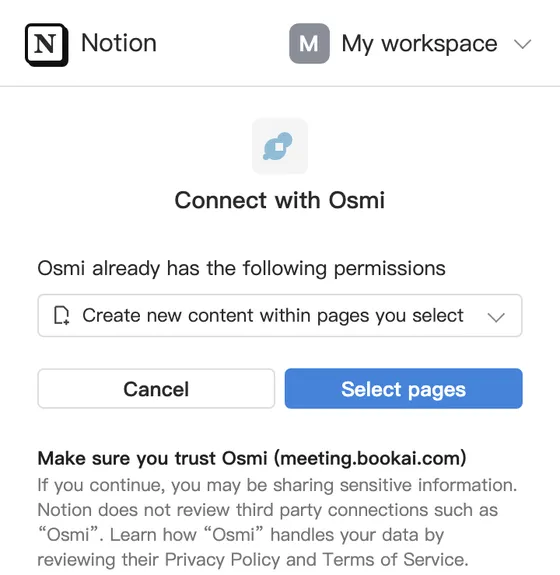
When your notes are ready, tap "Export" in the top-right corner, then "Connect Notion" under "Send to". The first time, Notion's permission page opens; sign in and allow Osmi to create pages.
Step 2
Tap "Send to Notion"
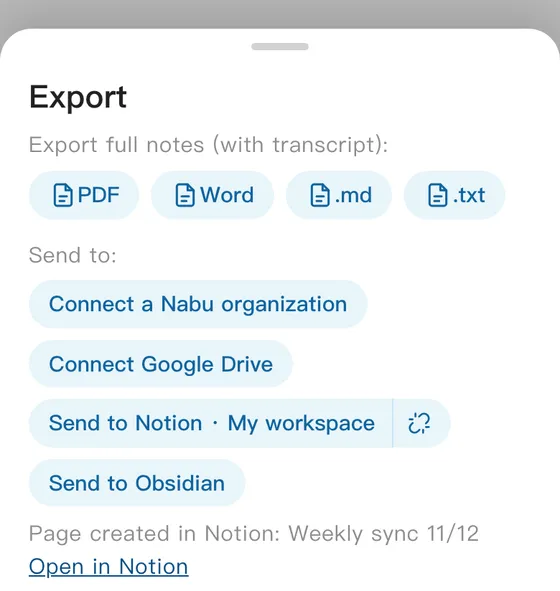
Once connected, the button reads "Send to Notion · your workspace". One tap creates a page for this meeting in Notion; when it's done, tap "Open in Notion" to see it.
Step 3
Organize it in Notion
Each meeting becomes a separate page under Private in Notion. Drag it into a project or client page to keep it with related notes; to find a meeting later, just use Notion's search.
Tips
- From now on, every meeting is one tap to Notion, no reconnecting.
- The page is a regular Notion page: edit it and share it with colleagues as usual.
- Want a different workspace? Tap the right end of the button (the disconnect part), then connect again.