Too many meeting notes?
Put them in Nabu and ask AI
Meeting notes end up scattered across inboxes and folders, and three months later nobody can find them. Send your Osmi notes to Nabu and you can ask your own AI (Miva) about any meeting. It takes three steps.
Step 1
In Osmi, open the Send to Nabu window
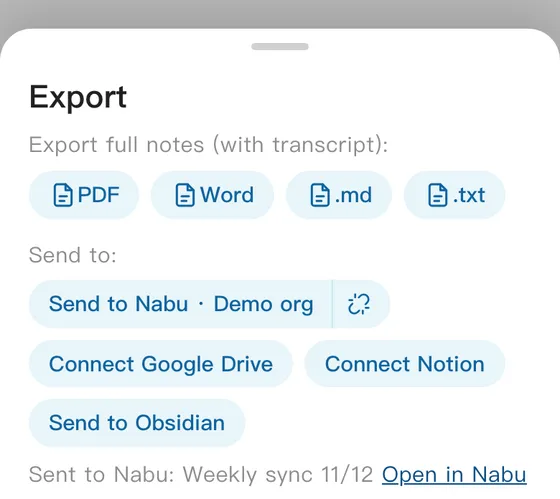
When your notes are ready, tap "Export" in the top-right corner, then "Send to Nabu" under "Send to" to open the window. The first time, sign in to Nabu with Google. No organization yet? Name one right in the window and tap "Create". No need to sign up on Nabu first.
Step 2
Pick your organization and send, and your AI app is set up for you
Pick your organization and tap "Send to Nabu" in the window. Osmi sets up an AI app for your organization (or uses the one you already have), and notes you send later join on their own.
Step 3
Tap "Ask your first question" and start using your own AI (Miva)
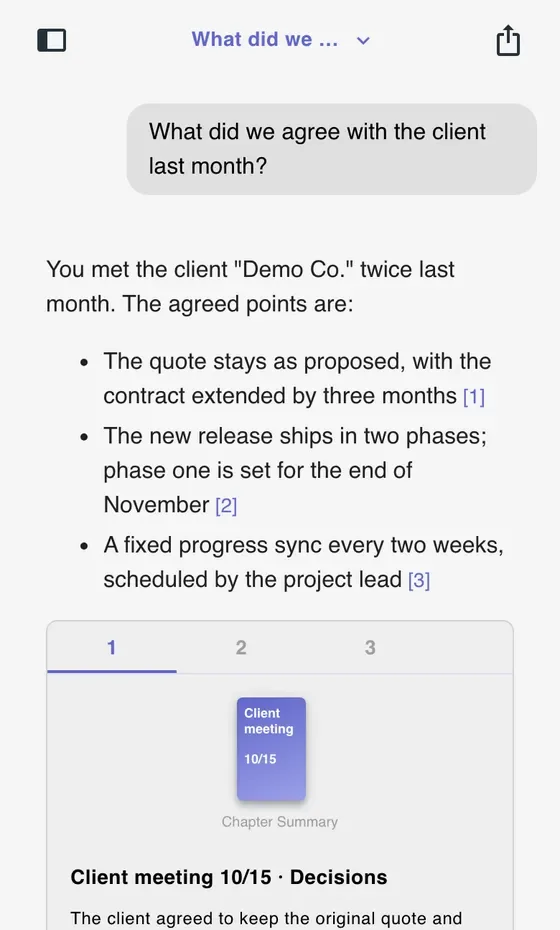
Once Nabu has finished preparing (usually within 2 minutes), "Ask your first question" lights up; tap it to open Miva. Sign in with Google, Apple or email; the first sign-in creates your account. Your conversations are saved, so you can pick up where you left off. Start with "What did this meeting decide?", then ask the way you'd ask a colleague: "What did we agree with the client last month?" "Which action items from these weekly meetings still have no owner?"
Tips
- Bookmark your AI app's address, or add it to your phone's home screen, so it's one tap away next time.
- From now on, every meeting you send from Osmi to Nabu is ready to ask about in your AI app a few minutes later.
- Want to change Miva's title or suggested questions? Go to your AI app's settings in Nabu.