Zoom, Teams or Meet call over?
Osmi writes the meeting notes
When the online meeting ends, the real work starts. If it was recorded, hand the recording straight to Osmi. Not the host and can't record? Record the audio yourself with AudioMemo. Two routes, one set of meeting notes.
Step 1
During the meeting: record it in the app, or use AudioMemo
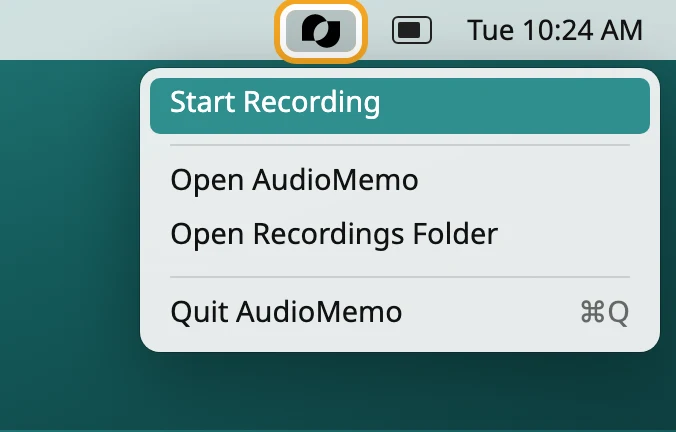
If the host hits record, just download the recording afterwards: Zoom's local recordings go to the "Zoom" folder on your computer, and Teams and Google Meet recordings land in OneDrive or Google Drive. Not the host, or no permission to record? Click AudioMemo in the menu bar at the top of your screen and choose "Start Recording". Everyone's voices, yours included, get recorded together.
Step 2
Open Osmi, click "+" and pick the video or audio file
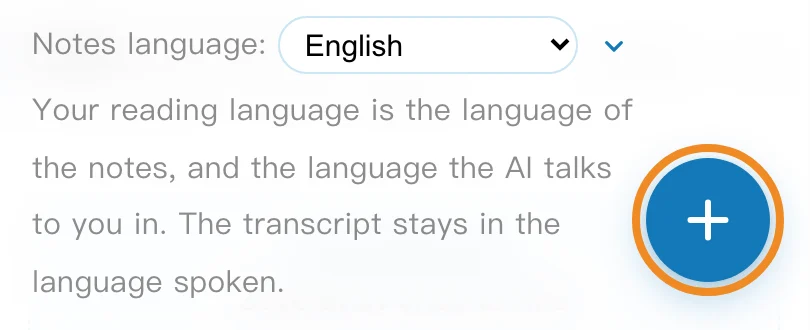
First choose your "Notes language" at the bottom: that's the language your notes are written in. Click "+" in the bottom-right corner to choose files, or just drag them in. Video or audio both work, and you can pick several files at once. Recorded with AudioMemo? Even faster: click "Transcribe with Osmi" on that recording's row.
Step 3
Click "Start" and tell Osmi who's who
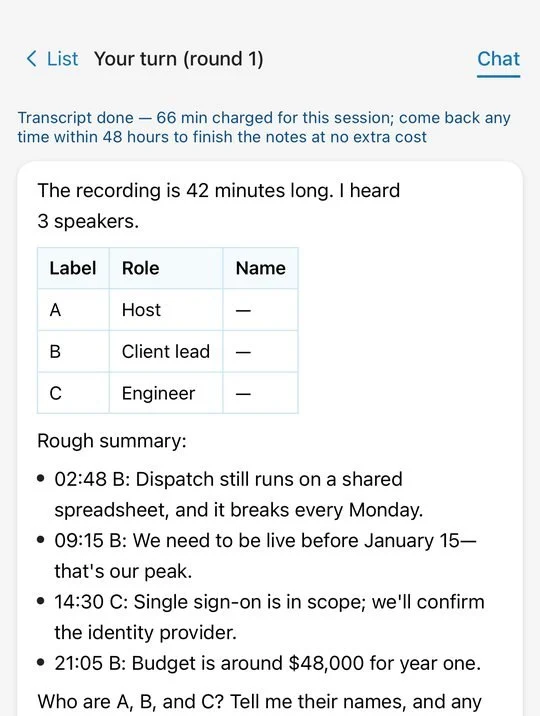
Check the length and click "Start". Osmi writes the transcript first, then lists the speakers it heard so you can swap A, B and C for real names. Names or terms spelled wrong? Fix them all at once with "Fix terms"; if everything's right, click "All correct".
Step 4
Pick what to highlight, then export your notes
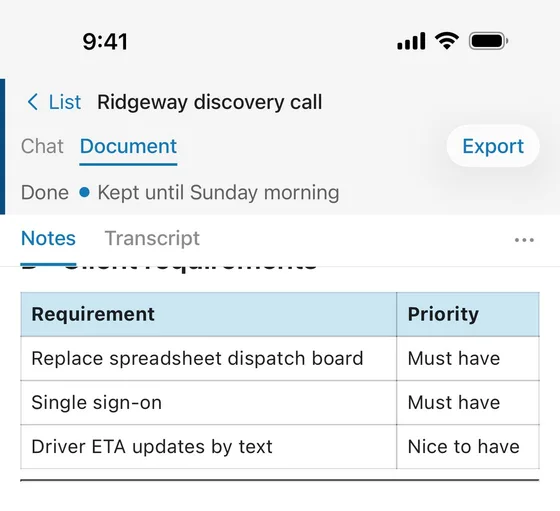
You always get a quick summary, a timeline, action items and key points. Want a "risk assessment" or a "who stands where" table too? One click adds it. When it's done, click "Export" in the top-right corner to save as PDF, Word or .md, or choose "Save to Google Docs" and share it with everyone.
Tips
- Huge meeting video? Hand it straight to Osmi. It only uses the audio.
- Once it's uploaded, go do something else. You'll hear a chime when it's ready.
- Before you record, let everyone know.
Install from the Mac App Store, or download the DMG, open it and drag AudioMemo into your Applications folder. The first time you record, your Mac asks twice — to use the microphone and to record this computer's audio. Click Allow both times.