Your first meeting notes
start with a client meeting
Sales calls, pitches, discovery meetings: every word the client says could be your next step. For your first try, pick a recent client meeting. Hand over the recording, answer a few questions, and the client's needs, what each side agreed to and the full transcript come back together.
Step 1
Record the whole meeting on your phone
Let the client know you're recording, set your phone on the table between you, open the built-in recording app and hit record: Voice Memos on iPhone, the Voice Recorder app on Android (the name varies by phone). A video recording of a video call works too; Osmi only uses the audio.
Step 2
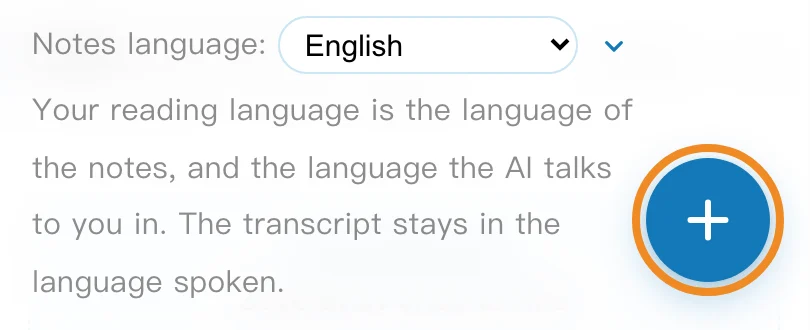
Open Osmi, tap "+" to pick the recording, then "Start"
First choose the "Reading language" at the bottom; your notes are written in that language. Tap "+" in the bottom-right corner and pick the file; if the recording was split into several parts, select them all. Check the length and tap "Start". Once it's uploaded, you can go do something else. You'll get a notification when it's ready.
Step 3
Tell Osmi who's who
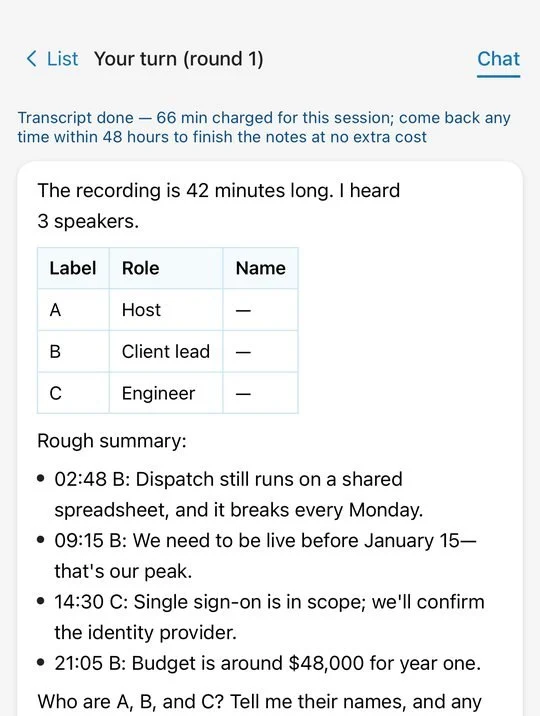
Osmi writes the transcript first, then lists the speakers it heard. Replace the labels Speaker A, B and C with your client's and colleagues' names. Company or product names spelled wrong? Fix them all at once with "Fix terms"; if everything's right, tap "All correct".
Step 4
Export and hand it to the team for follow-up
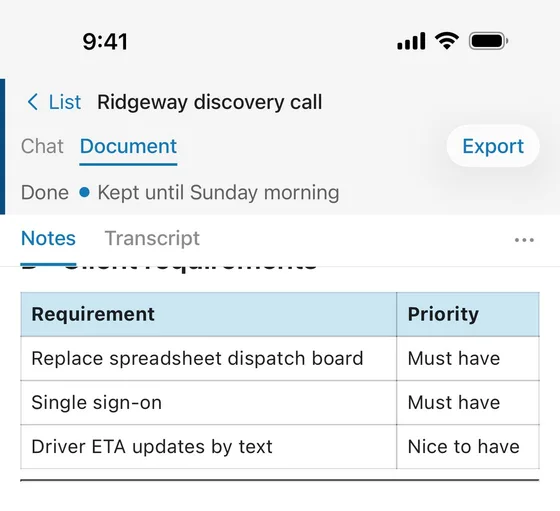
You always get a summary, a timeline, action items and key points. Tap "Export" in the top-right corner, save as PDF or Word, or straight to Google Docs, and pass it to the sales and project people who pick it up from here.
Tips
- New accounts get 60 free minutes, valid for 30 days, enough for a full client meeting.
- Fix client and product names in "Fix terms" first, and every document after that gets them right.
- Before you record, let the client know.