Too many meeting notes?
Keep them all in one Drive
Meeting notes live on everyone's own computer, so finding one means asking around. Have Osmi save every meeting as a Google Doc in the same Drive, and your team just opens it. Three steps.
Step 1
In Osmi, tap "Export" and connect Google Drive
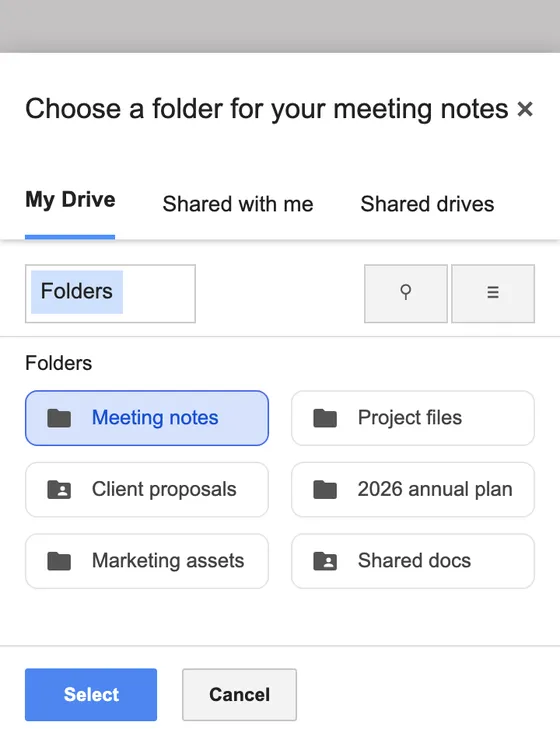
When your notes are ready, tap "Export" in the top-right corner. On the web, tap "Connect Google Drive" under "Send to", pick your Google account and allow access, then choose a folder for your meeting notes (skip it and they go to My Drive). In the mobile app, tap "Save to Google Docs" and pick your account the first time.
Step 2
Every meeting goes to the same folder
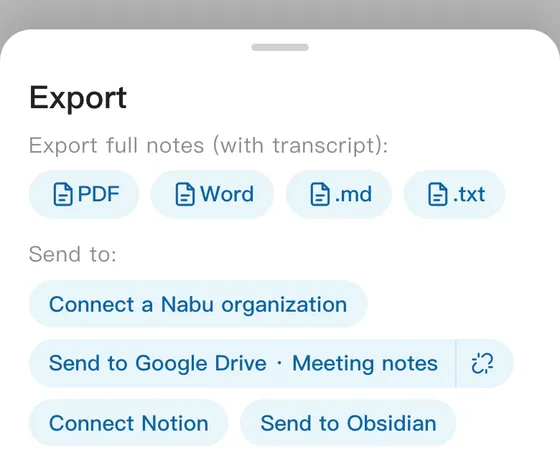
Once connected, the button reads "Send to Google Drive · folder name". One tap per meeting saves it as a Google Doc in that folder.
Step 3
Send it, then open and share
Tap "Send to Google Drive" (web) or "Save to Google Docs" (app), then "Open" once it's saved. It's a regular Google Doc: share it with colleagues using Google's Share button, and everyone can read and comment together.
Tips
- Share your meeting-notes folder with the whole team, and everyone sees every meeting saved there.
- On the web, to switch accounts or folders, tap the right half of the button to disconnect, then connect again.
- You can also save the transcript as a Google Doc in the same folder.