Recorded on a voice recorder?
Meeting notes in 3 steps
The voice recorder you already own works great. No need to buy an AI recorder just to get transcripts. Hand the file to Osmi and get the transcript, meeting notes and to-do list in one go.
Step 1
Copy the recordings to your computer
Plug the recorder into your computer with a USB cable and drag the recordings to your desktop or a folder. Common formats like MP3, WAV and M4A all work. Got DS2 or DSS files from an Olympus or Philips recorder? Convert them to MP3 first with the software that came with it.
Step 2
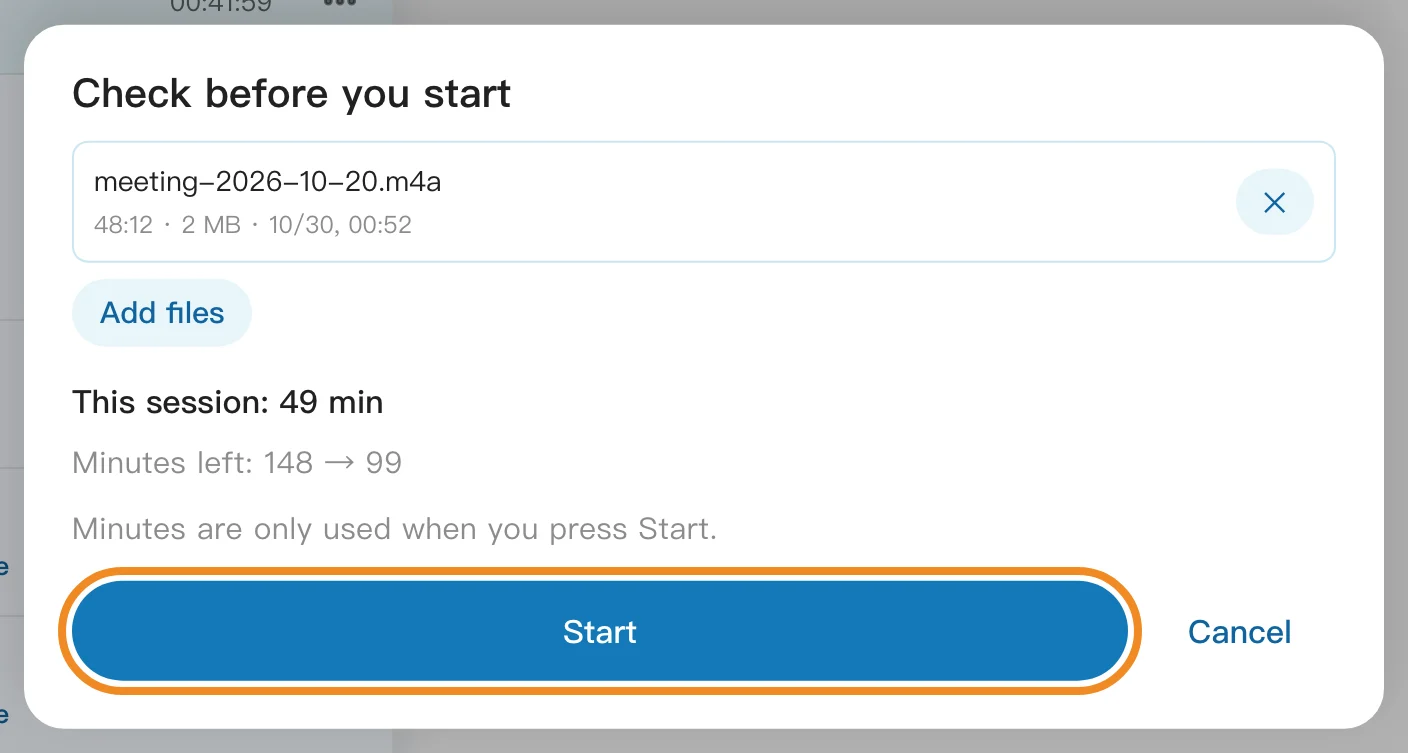
Open Osmi, click "+" to pick the file, then "Start"
First choose your "Notes language" at the bottom. Click "+" in the bottom-right corner to pick the recording, or drag it in. One meeting split across several files? Select them all at once and Osmi stitches them together in order. Check the length and click "Start".
Step 3
Tell Osmi who's who and export your meeting notes
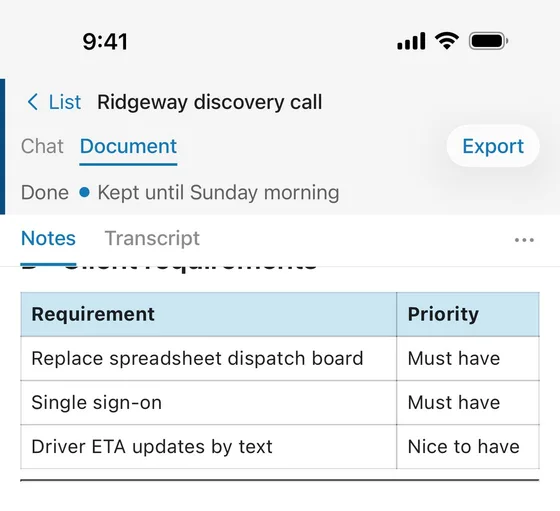
Osmi writes the transcript first, then asks you to swap in the speakers' real names and fix any terms. Answer, and your meeting notes are written. Click "Export" in the top-right corner to save as PDF, Word or .md.
Tips
- Once it's uploaded, go do something else. You'll hear a chime when it's ready.
- Old recordings on your recorder work too. Meetings from years ago, finally in writing.
- The transcript keeps everyone's exact words in the original language, so you always know who said what.